



SelengkapNya ^_^
How To Enforce Google Safe Search And YouTube Restricted Mode On Your Network
Updated: 27 Aug 2025
With the release of Technitium DNS Server v5, a new feature called ANAME resource record has been introduced. ANAME resource record implementation is similar to the IETF draft with respect to its core functionality that allows adding a CNAME like functionality to the zone root. Essentially, ANAME is similar to CNAME except that the authoritative DNS server resolves the A or AAAA records by itself and returns them.
The new release also adds Conditional Forwarder feature that can be combined with the ANAME feature to enforce Google's Safe Search or YouTube's Restricted Mode.
To configure Google's Safe Search, you need to add a new "google.com" Conditional Forwarder zone with "Use This DNS Server" option enabled. The "Use This DNS Server" option tells the DNS Server to forward all the queries to itself so that you do not need to configure any other DNS server as a forwarder. This option is useful in scenarios like the current one where you just need to override a few records for a particular zone but still wish that the other records in the zone to be resolvable as usual.
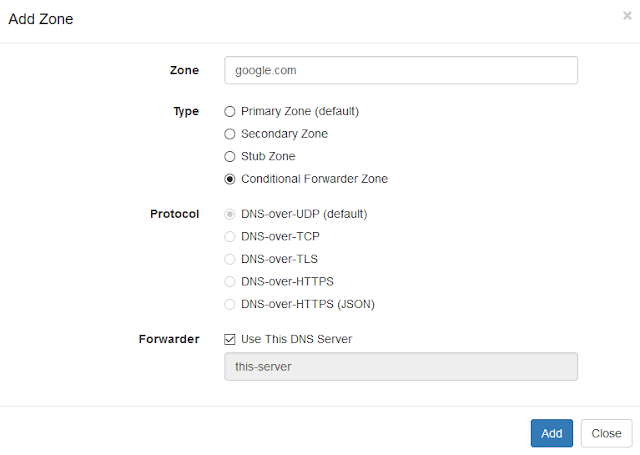 |
| Add New Conditional Forwarder Zone |
Once you have added the zone, you need to add a CNAME record that points "www.google.com" to "google.com" and another ANAME record that points "google.com" to "forcesafesearch.google.com". Check the screenshot below to know how the records should look like.
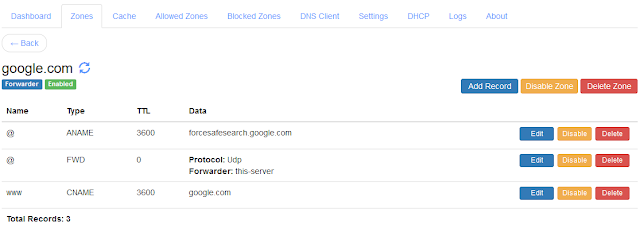 |
| Enforcing Google Safe Search |
You can now test this by clicking on the DNS Client tab and querying for "www.google.com". Now open "www.google.com" in your web browser and try doing a search and notice the Safe Search option on the top right corner.
Similarly, to configure YouTube's restricted mode, you need to add a new "youtube.com" Conditional Forwarder zone with "Use This DNS Server" option enabled. Once the new zone is added, you need to add a CNAME record that points "www.youtube.com" to "youtube.com" and another ANAME record that points "youtube.com" to "restrict.youtube.com". This will enforce "Strict Restricted Mode". To enforce "Moderate Restricted Mode" you need to point your ANAME record to "restrictmoderate.youtube.com" instead. Once you have configured the records, they should look as shown the screenshot below.
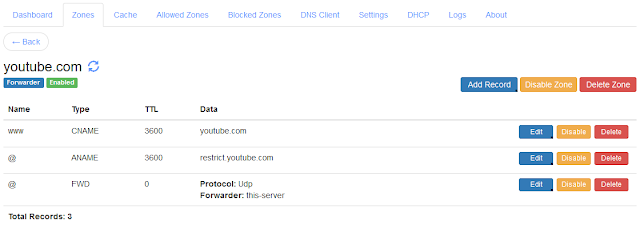 |
| Enforcing YouTube Strict Restricted Mode |
To enforce restricted mode for YouTube mobile app, you need to ensure that the domain names "m.youtube.com", "youtubei.googleapis.com" and "youtube.googleapis.com" too resolves the same way as explained above. For "m.youtube.com", add a "m" CNAME record similar to "www" record in the same forwarder zone. For the others, create a new Conditional Forwarder zone for "googleapis.com" and configure it similar to the "youtube.com" Conditional Forwarder zone with a ANAME record that points to "restrict.youtube.com" and add CNAME records for them.
You can now test this too with the DNS Client tab by querying "www.youtube.com". You can open "www.youtube.com" in your web browser and check if the restricted mode is working by searching with any keyword.
The Conditional Forwarder zone is quite useful that not only you can forward queries to one or more DNS providers by adding one or more FWD records, you can override records that you wish and have the zone resolve as usual for other records.
https://blog.technitium.com/2020/07/how-to-enforce-google-safe-search-and.html

0 Reviews