

Zabbix - Docker Installation on Ubuntu Linux


Would you like to learn how to install Zabbix using Docker on Ubuntu Linux? In this tutorial, we are going to show you all the steps required to perform the Zabbix installation using Docker on a computer running Ubuntu Linux in 10 minutes or less.

• Ubuntu 18.04
• Ubuntu 19.04
• Ubuntu 20.04
• Zabbix 5.0.0

Zabbix Playlist:

On this page, we offer quick access to a list of videos related to Zabbix installation.

Don't forget to subscribe to our youtube channel named FKIT.

Tutorial Zabbix - Docker Installation on Ubuntu Linux

Install the Docker service.

Copy to Clipboard

Download the Zabbix Docker images from the online repository.

Copy to Clipboard

List the Docker images installed on your system.

Copy to Clipboard

Here is the command output:

Copy to Clipboard

Start a new Mysql container.

Copy to Clipboard

In our example, the MySQL password for the user named Zabbix is kamisama123.

In our example, the MySQL password for the Root account is YjA0OTYwZDBiN2EwNWFjMTRjZGU3Yjcy.

Keep in mind that you need to change both passwords.

Start a new container for the Zabbix java gateway.

Copy to Clipboard

Start a new container for the Zabbix server.

Copy to Clipboard

Keep in mind that you need to change the Mysql password for the users: Zabbix and Root.

Wait 2 minutes before proceeding, to give the container time to create the required database infrastructure.

Start a new container for the Zabbix web interface.

Copy to Clipboard

Keep in mind that you need to change the Mysql password for the users: Zabbix and Root.

Start a new container for the Zabbix agent.

Copy to Clipboard

Verify the list of containers running.

Copy to Clipboard

Here is the command output:

Copy to Clipboard

Inspect the Zabbix agent container and take note of its IP address.

Copy to Clipboard

Here is the command output:

Copy to Clipboard

In our example, the IP address of the Zabbix agent container is: 172.17.0.6

Open your browser and enter the IP address of your web server.

In our example, the following URL was entered in the Browser:

• http://192.168.100.10

The Zabbix web interface should be presented.
zabbix login

On the login screen, use the default username and default password.

• Default Username: Admin
• Default Password: zabbix

After a successful login, you will be sent to the Zabbix Dashboard.
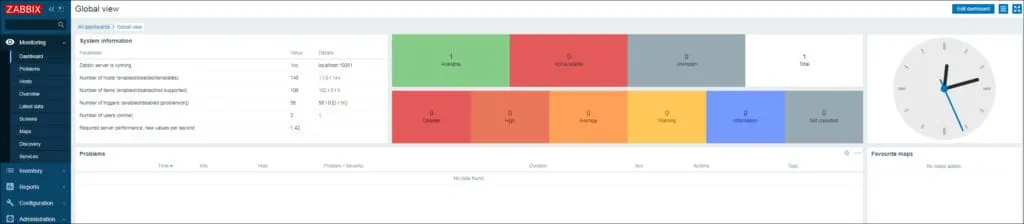
Zabbix 5 Dashboard

On the dashboard screen, access the Configuration menu and select the Host option.
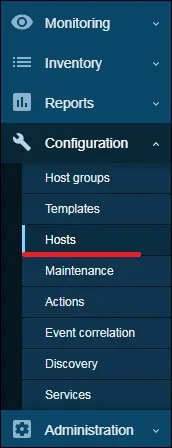
Zabbix 5 hosts menu

Edit the host named Zabbix server.

Change the IP address from 127.0.0.1 to the IP address of the Zabbix agent container.

Click on the Update button.
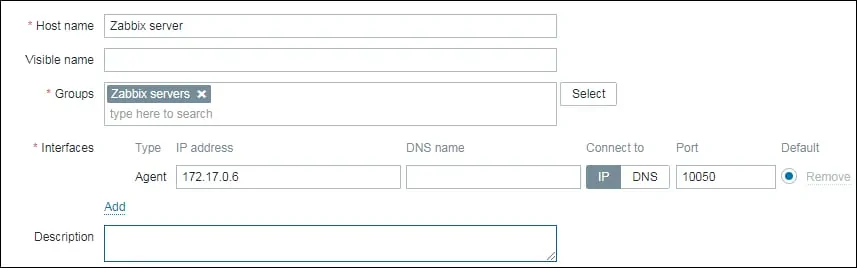
Zabbix docker

Congratulations! You have finished the Zabbix installation on Ubuntu Linux using Docker.

Comments

Popular posts from this blog

CLI Populer di OLT GPON ZTE

  ## cek onu belum terdaftar ZTE C300 # show gpon onu uncfg interface gpon-olt_1/9/1 onu 1 type ZTE-F609 sn ZTEGC86CCB88 exit ## Config interface onu yang baru interface gpon-onu_1/9/1:1   name NAME   description DESCRIPTION   sn-bind enable sn   tcont 1 name HSI profile 100M   tcont 2 name HOT profile 100M   gemport 1 name HSI unicast tcont 1 dir both   gemport 1 traffic-limit upstream UP100M downstream DW100M   gemport 2 name HOT unicast tcont 2 dir both   gemport 2 traffic-limit upstream UP100M downstream DW100M   switchport mode hybrid vport 1   switchport mode hybrid vport 2   service-port 1 vport 1 user-vlan 1200 vlan 1200   pppoe-plus enable sport 1   pppoe-plus trust true replace sport 1 exit ## config onu pon-onu-mng gpon-onu_1/9/1:1   service HSI type internet gemport 1 cos 0 vlan 1200   wan-ip 1 mode pppoe username PPPoE_USERNAME password PPPoeE_PASSWORD vlan-profile PPPoE host 1   secur...

OLT ZTE C300/320 di ONT Mode Port: Vlan_Translate, QinQ, Trunk & Access

  Contoh Config  1. Vlan Translate QinQ To Access: OLT-ZTE-C320#show run interface gpon-onu_1/4/1:21 Building configuration... ! interface gpon-onu_1/4/1:21   name RSO0766   description Customer_Vlan-Translate   tcont 6 name Internet_Vlan-Translate profile UP-100M   gemport 6 name Internet_Vlan-Translate unicast tcont 6 dir both   switchport mode hybrid vport 6   service-port 6 vport 6 user-vlan 1490 vlan 1490 svlan 1479  ! end OLT-ZTE-C320#show onu running config gpon-onu_1/4/1:21 pon-onu-mng gpon-onu_1/4/1:21   service Internet_Vlan-Translate gemport 6 vlan 1490   vlan port eth_0/4 mode tag vlan 1490   dhcp-ip ethuni eth_0/4 from-internet ! 2. Vlan QinQ Access: OLT-ZTE-C320#show run interface gpon-onu_1/2/5:22 Building configuration... ! interface gpon-onu_1/2/5:22   name Internet-QinQ-Access   description QinQ-Access   tcont 1 name Acsata profile UP-200M   tcont 1 gap mode2   gemport 1...

How to login Huawei Rectifier TP series (smu02B)?

  Dear All, In b/m steps how to login HCR to adjust its setting 1-login SMU of HCR with username admin & password 000001 2-get IP of HCR 3-Adjust your laptop IP in the subnetmask of HCR   (IP of HCR +1) 4-Open web browser prefereed IE and in address write IP of HCR (Note u should use http not https) 5-Enter username admin & Password changeme 6-Now u can adjust all rectifer setting B/M photos for clearafication